Introduction to Docker
Docker is a platform that allows applications to run in lightweight, isolated environments called containers. Unlike virtual machines, containers do not include an entire operating system; instead, they rely on Linux kernel features—primarily namespaces and control groups (cgroups)—to provide isolation and resource management. Each container is, at its core, simply a Linux process running on the host, but one that sees its own filesystem, network interface, and process table thanks to namespaces. Meanwhile, cgroups control how much CPU, memory, and I/O the container can use. This combination gives Docker its efficiency and portability: containers start quickly, consume fewer resources, and behave consistently across different environments.
As for virtualisation, there are two core concepts that make
- resources sharing to make the most of your available physical resources (CPU, memory, storage, etc.) running in parallel several applications,
- isolation to ensure the independance of the different applications.
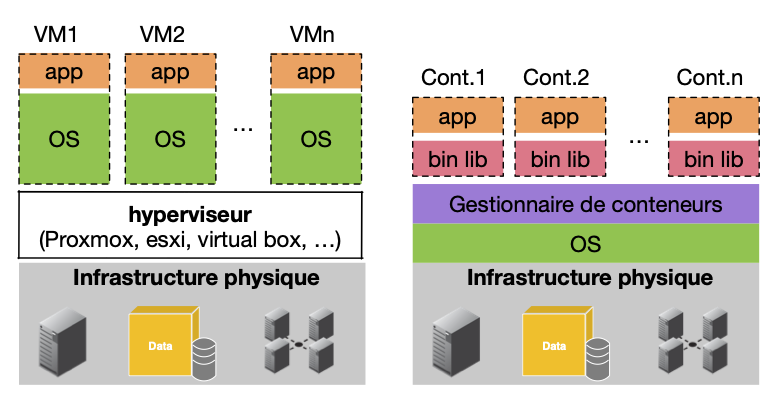
As illustrated by the following figure, contrary to virtualisation that requires the execution of several OS (the host OS + virtualised OS), a container only gathers the necessary libraries and applications to built the working environment.
 As an example, consider you need a Linux environment with specific libraries to work in group. You mainly have two possibilities:
- impose every member of the group to install the specific operating system and the imposed libraries on their machine,
- provide them with a docker environment that can be run on any system.
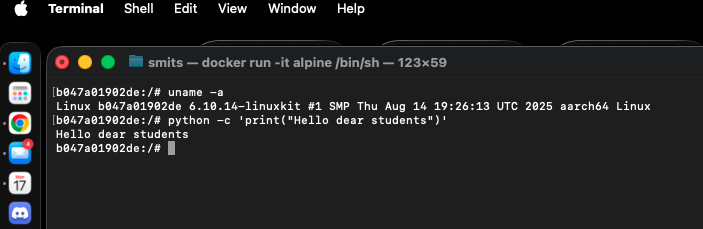
The figure below illustrates how a Debian system can be used to run a Python script on top of a host Apple OS X.
Images and Containers
The keywords image and container have already been mentioned as they are central in a Docker environment.
An image is a monolithic element, it:
- corresponds to an immutable (read only) templates,
- contains the application and its dependencies,
- can be stored, shared, versioned, and cached.
A stack of layers to form an image always starts from an initial image taken from a registry. The central and default registry is the Docker hub (see figure below) that contains a huge number of public and private repositories. Examples of base images are: the minimal Alpine Linux system, the Python environment, the ngnix service, etc.

A container is a running instance of an image, it:
- corresponds to running processes isolated using Linux namespaces and cgroups,
- adds a wirting-layer on top of an image to store data but that are ephemeral by default (data are lost when the container is removed),
- can be stopped, restarted, paused, removed.
Details
An image is a recipe described as a sequence of layers. A container is the cake you obtain applying this recipe. Hence, many containers can be run from the same image.
Looking inside an image
Docker images are built from layers to combine them into a single working filesystem.
Any image is built as a sequence of layers starting with a base image (like alpine, ubuntu or python) that already includes several predefined layers and that, all together form the starting point of an environment.
- Layers are cached and reused on your system to speed up builds,
- Layers are immutable, helping deduplication and reproducibility,
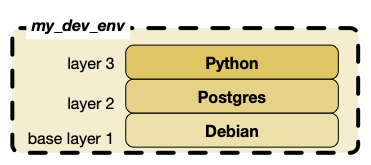
As an example, consider you want to work in a base Debian environment completed with a python interpretor and a postgresql web server. Then you could build a sequence of layers to obtain a final image, called for example my_dev_env as illustrated below:
From an image to container(s)
A container is a running instance of a Docker image:
- an image is static: a packaged filesystem + metadata + configuration,
- a container is dynamic: an isolated Linux process using that filesystem.
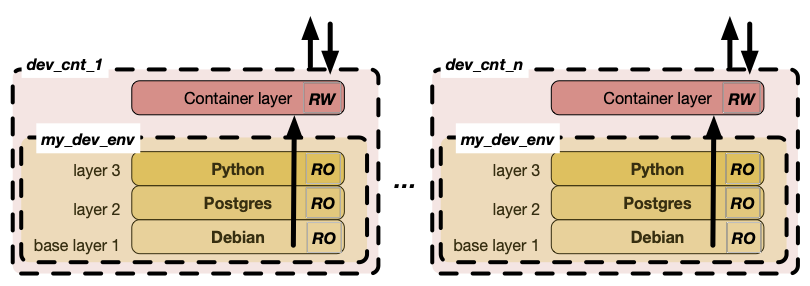
As illustrated below, turning an image into a container consists in adding an additional ephemeral read-write layer on top the images stack, that remains read-only. Concretely, to build the final image from a stack of layers when the creation of a container is requested, Docker uses a Union File System (UnionFS). UnionFS merges all these layers into a single filesystem.
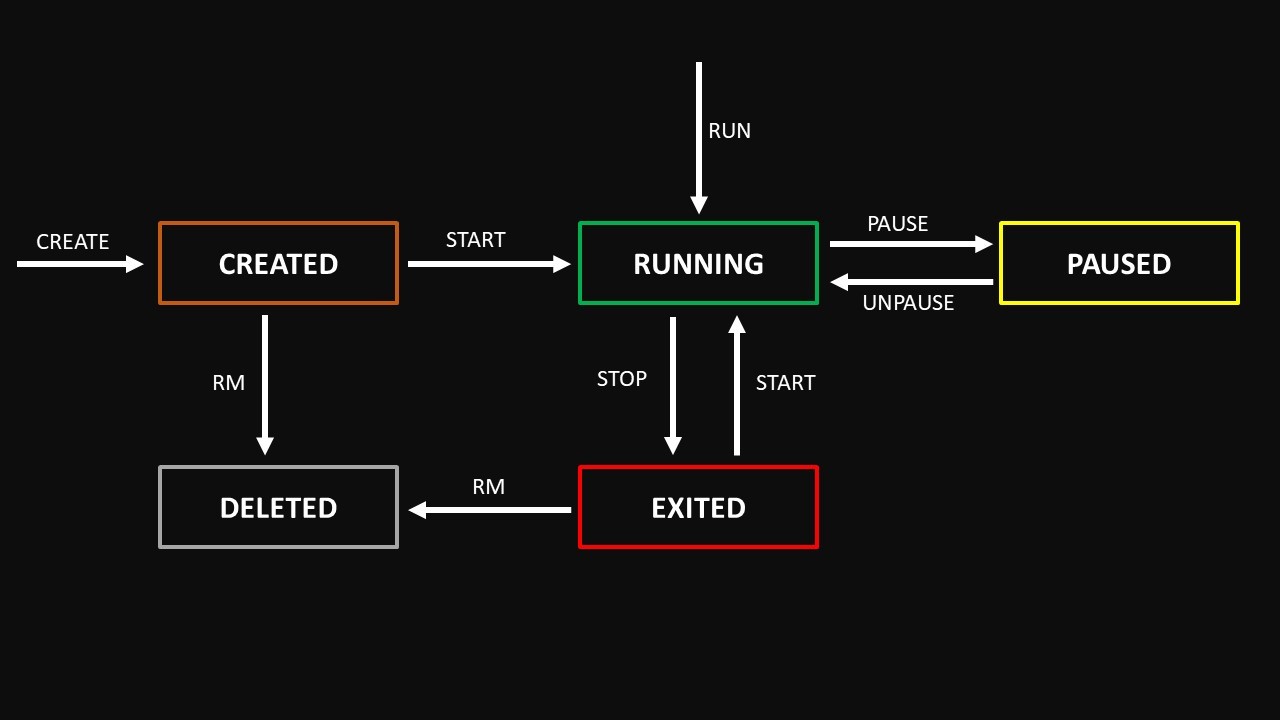
As a classical process, a container follows a lifecycle composed of five states:
- created once the creation command has been applied on an image,
- running once the created/paused/exited container has been started,
- paused reprensentinf a frozen process,
- exited once the container receives a stop signal, the container is not running any more but still exists,
- deleted one a deletion signal is received, the read-write layer is remove and there is no more trace of the container.
Docker architecture
Docker Engine
Docker does not come natively with any OS, it requires the installation of the Docker Engine (Docker CE) on your host OS.
The Docker Engine is the core component responsible for building, running, and managing containers on a machine. It is composed of:
- A daemon process (dockerd) running in the backgroun
- APIs and internal services that manage containers, networks, images, and volumes
- A storage driver (OverlayFS) and network drivers (bridge, host, overlay…)
The daemon is the “brain” of Docker: every time you ask Docker to start a container, build an image, or pull something from the Internet, the request is handled by the Engine.
Key characteristics:
- Runs with root privileges, leading to possible security issues, or in rootless mode (more recent version)
- Manages container lifecycle and resources
- Ensures isolation via Linux namespaces and cgroups
- Provides the API used by all Docker tools
Client/daemon communication
Interactions with Docker always happen through the Docker CLI or other clients (Docker Desktop, APIs, SDKs). The Docker client does not run containers itself—it sends instructions to the daemon.
The Docker client talks to the daemon using a REST API:
- On Linux: through a Unix socket (/var/run/docker.sock)
- On Windows/macOS: through a TCP socket or Docker Desktop virtual machine
As an example, consider you want to run an ngnix web server on your system. Here are the different steps of the process:
- using the CLI (commandline, Docker Desktop, etc.) the client requests the Docker Daemon to run ngnix
- if the image is not available locally, the daemon pulls the nginx image from a repository
- the daemon creates a container based on the image
- the daemon starts and monitors the container
                +----------------------------+
                |        Docker Client       |
                |  (CLI, API, Desktop UI)    |
                +-------------+--------------+
                              |
                              | REST API
                              v
                     +------------------+
                     |   Docker Engine  |
                     |     (Daemon)     |
                     +---------+--------+
                               |
          ---------------------------------------------------
          |                |                |               |
   +--------------+  +--------------+  +------------+  +-------------+
   |   Images     |  |  Containers  |  |   Networks |  |   Volumes   |
   +------^-------+  +------^-------+  +------------+  +-------------+
          |                |
          |  UnionFS       |  Namespaces & cgroups
          |  (layers)      |  (process isolation)
          v                v
   +---------------------------------+
   |           Host OS               |
   |       Linux Kernel APIs         |
   +---------------------------------+
Communicating with containers
Running containers may need to communicate with each others, and any machine in the network of the hosting machine may want to communicate with one of your containers. As an example a real applications often relies on multiple services (API, DB, cache, proxy) that need to exchange data. An external application, from the Internet or an ethernet, may want to access your DB running in a container. Docker provides (virtual) networking facilities to determine how reachable your containers are.
Network Types and Key Elements
Docker provides several network drivers to control how containers communicate with each other, with the host system, and with the outside world. Each network type serves different use cases—from local development to distributed systems.
This section covers the main Docker network types:
- default bridge
- host
- none
- user-defined bridge
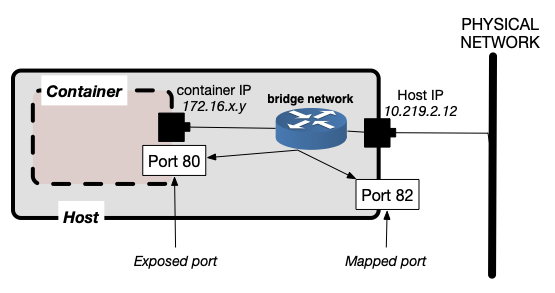
Every Docker container runs with its own virtual network interface, typically assigned a private IP address from the subnet of the Docker network it belongs to (e.g., 172.18.x.x on a bridge network). This IP address allows the container to communicate with other containers on the same network. However, this internal IP is not directly accessible from the host or the outside world. To make a service running inside a container reachable externally—such as a web server or a database—Docker uses port mapping. A container can “expose” a port (e.g., an application running on port 80), but exposing alone is only documentation; the service becomes accessible from the host only when a published port is set with -p HOST_PORT:CONTAINER_PORT. For example, -p 8080:80 binds the container’s internal port 80 to port 8080 on the host, allowing requests to reach the container. These elements—IP address, exposed ports, and published ports—form the foundation of Docker networking, determining how containers talk to each other and how external clients can access containerized services.
Bridge network
The bridge network is the default network for containers on a single host. When you run a container without specifying any network, Docker places it in the default bridge network.
- containers receive a private IP (e.g., 172.17.x.x),
- containers can reach the Internet through NAT,
- containers cannot communicate via names on the default bridge,
- containers can communicate via IP addresses.
Bridge networks are particularly appropriate to the following use cases:
- running single containers locally,
- basic development scenarios.
Host network
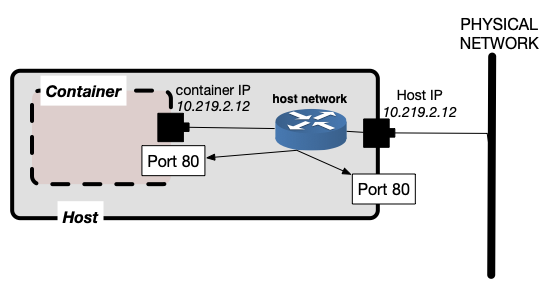
When a container is attached to the host network, it shares the host’s network stack directly. No virtual network interface, no NAT, no bridge.
Hence:
- there is no isolation between the container and the host network,
- it provides the highest network performance (no NAT),
- exposed ports are immediately visible on the host.
Host networks are particularly appropriate to the following use cases:
- performance-sensitive networking,
- applications needing raw access to the host network.
None network
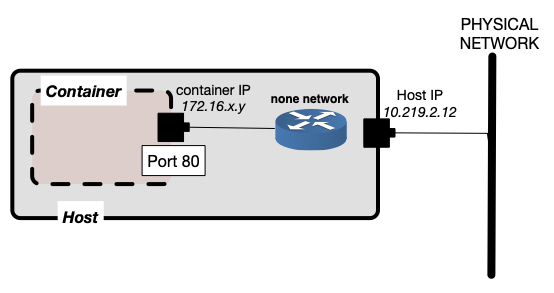
This network is used to indicate that no connection can be established with this container
Useful for security, sandboxing, or workloads that don’t require networking
User-defined bridge network
The default bridge network has limitations, for instance, container can only communicate using their associated IP address (no automatic DNS resolution).
Users can define their own bridget networks that are identified by their name and configuration (Ip range, etc.). Using a user-defined network:
- containers can communicate by name (DNS),
- containers can be isolated in different user-defined bridget networks,
- more precise control (subnets, IP ranges, etc.) of the network.
Such networks are particularly useful for:
- local multi-services development,
- applications composed of several containers (web + db + cache).
Making data persistant outside containers
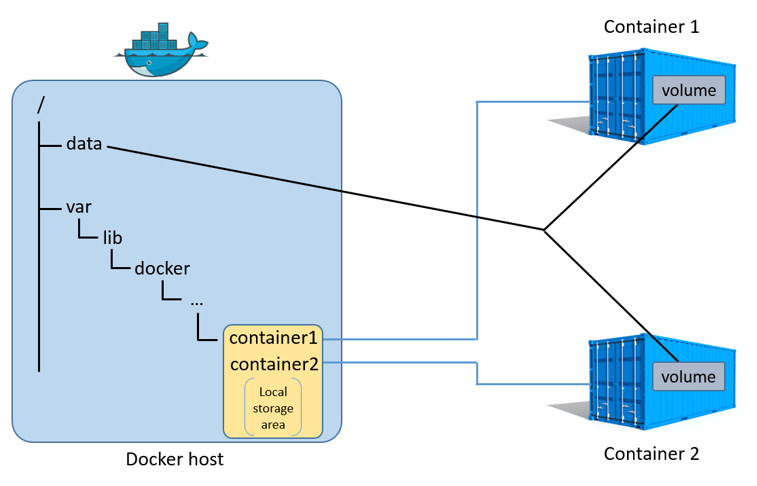
A Docker volume is a persistent storage mechanism managed by Docker that allows data to live outside the lifecycle of a container. Unlike a container’s writable layer—which is deleted when the container is removed—volumes provide a stable location to store files such as database data, logs, or application assets.
As illustrated by the figure below, a volume is an external storage component that is linked to a directory in your container’s file system. One says that the volume is mounted in a directory, it means that all the files and their content created in this directory will be stored in the external volume and not in the R/W layer of the container. A volume can be shared by different containers.
Named volumes
A named volume is a persistent storage area managed entirely by Docker and identified by a user-defined name. When you create a named volume, Docker stores its data in a controlled location on the host (usually under /var/lib/docker/volumes/) and decouples the data from the container’s lifecycle.
They are ideal for storing databases, configuration files, or application data that must outlive the container and be safely reused across deployments.
Too use such type of volume, you have to:
- ask Docker to create a volume with a given identifier,
- mount the volume name into a directory of the container at launch time.
Bind mounts
A bind mount directly maps a folder or file from the host filesystem into a container, allowing the container to read or modify files stored on the host. Unlike volumes, bind mounts give you full control over the source path: you choose exactly which host directory is shared. This is especially useful for development, where live editing of code on the host should be immediately reflected inside the container. However, bind mounts are less portable because they depend on host-specific paths, they can bypass Docker’s storage isolation, and they may behave differently across operating systems. While invaluable for development workflows, bind mounts should be used cautiously in production environments where stability and portability matter.